App documentation
Understand the full Lumor research workflow
Lumor brings survey building, participant recruitment, analytics, and third-party survey routing into one workspace.
Lumor is organized around workspaces, projects, folders, and research resources. Teams create studies, collect responses, recruit participants, analyze results, and manage access from one web app.
What is covered here
Use this page as a map of the product. Each guide explains what the feature is for, when to use it, the shortest setup path, and what to check before sharing work with respondents or teammates.
Core Lumor flows at a glance
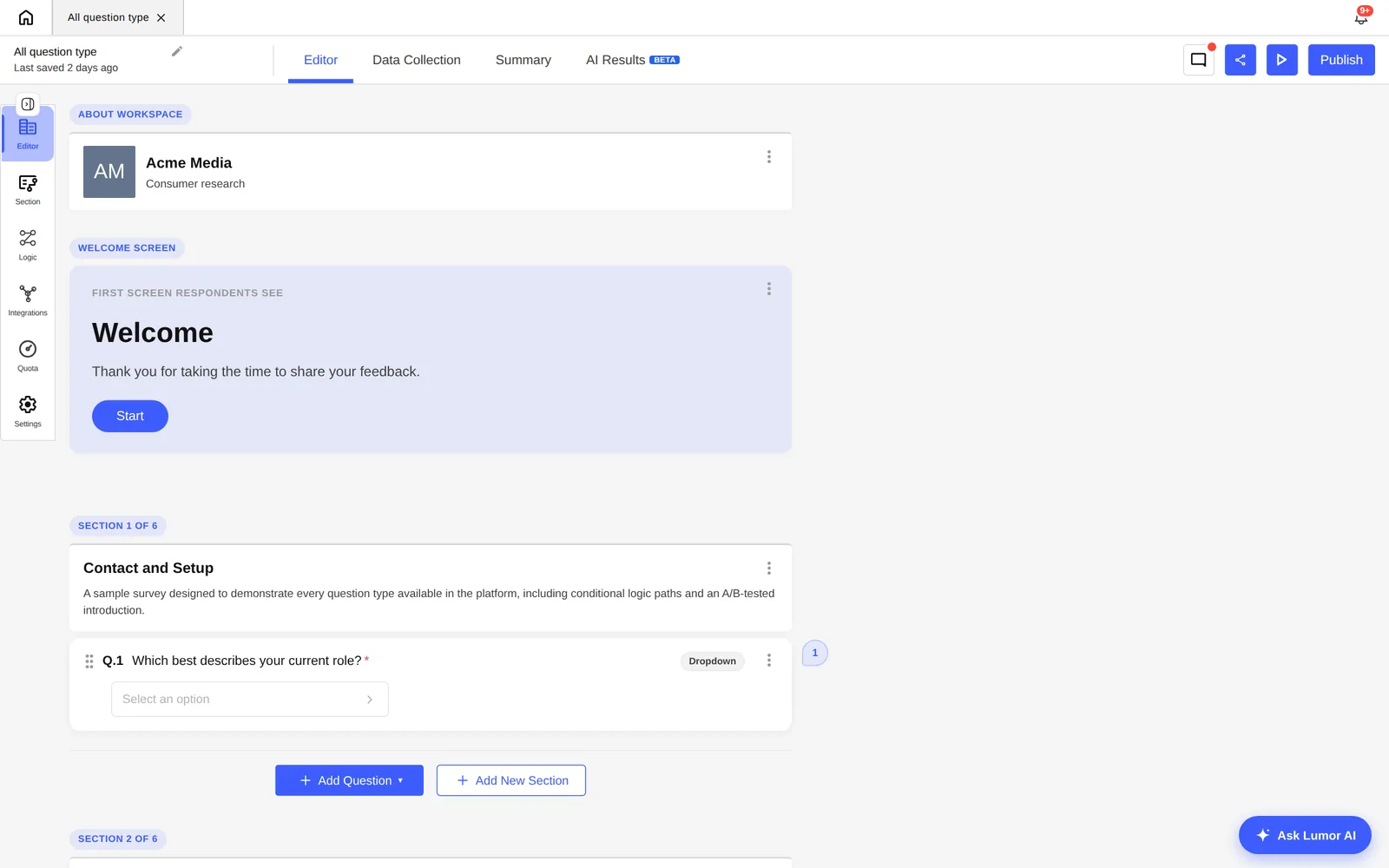
A quick walk-through of the main screens you will use in Lumor.

Step 1 of 5
1. Sign up
Create a Lumor account with your name, work email, password, and workspace name.
Quick start
If you are new to Lumor
Follow this order to get from an empty account to a launched study.
Set up your workspace
Create or open the right workspace, then create a project and folder for the research initiative.
Create the study
Build a survey, discussion, interview, or intercept depending on where respondents should complete the experience.
Launch and learn
Preview the respondent path, share the right link, monitor responses, and use analytics or results to review findings.
Workspace management
Create and switch workspaces, organize projects and folders, and keep work scoped to your team.
Survey builder
Build surveys with sections, settings, styles, previews, and publishing controls.
Collection and panels
Share collector links, manage participants, screen respondents, and track delivery.
Analytics and reports
Review responses, question-level results, and generated summaries.
Intercepts
Route respondents through Lumor before and after a third-party survey while preserving metadata and outcomes.
Recommended reading path
- 1Start with /docs/account-access if you are signing in, joining a team, or accepting an invitation.
- 2Read /docs/workspaces-projects-folders to understand where research resources live and how access is inherited.
- 3Read /docs/survey-builder and /docs/collection-and-panels when you are launching a Lumor-hosted survey.
- 4Read /docs/intercepts when the survey runs in another tool and Lumor only needs to route, track, and report the respondent journey.
- 5Use /docs/analytics-and-reports after collection starts so you know where to inspect submissions, question analytics, and results.